
Q: I would like to see my stock orders on a calendar. How can I do that?
A: To view your stock orders on a calendar, follow these directions:
Navigate to Orders > Stock Orders > Dashboard.
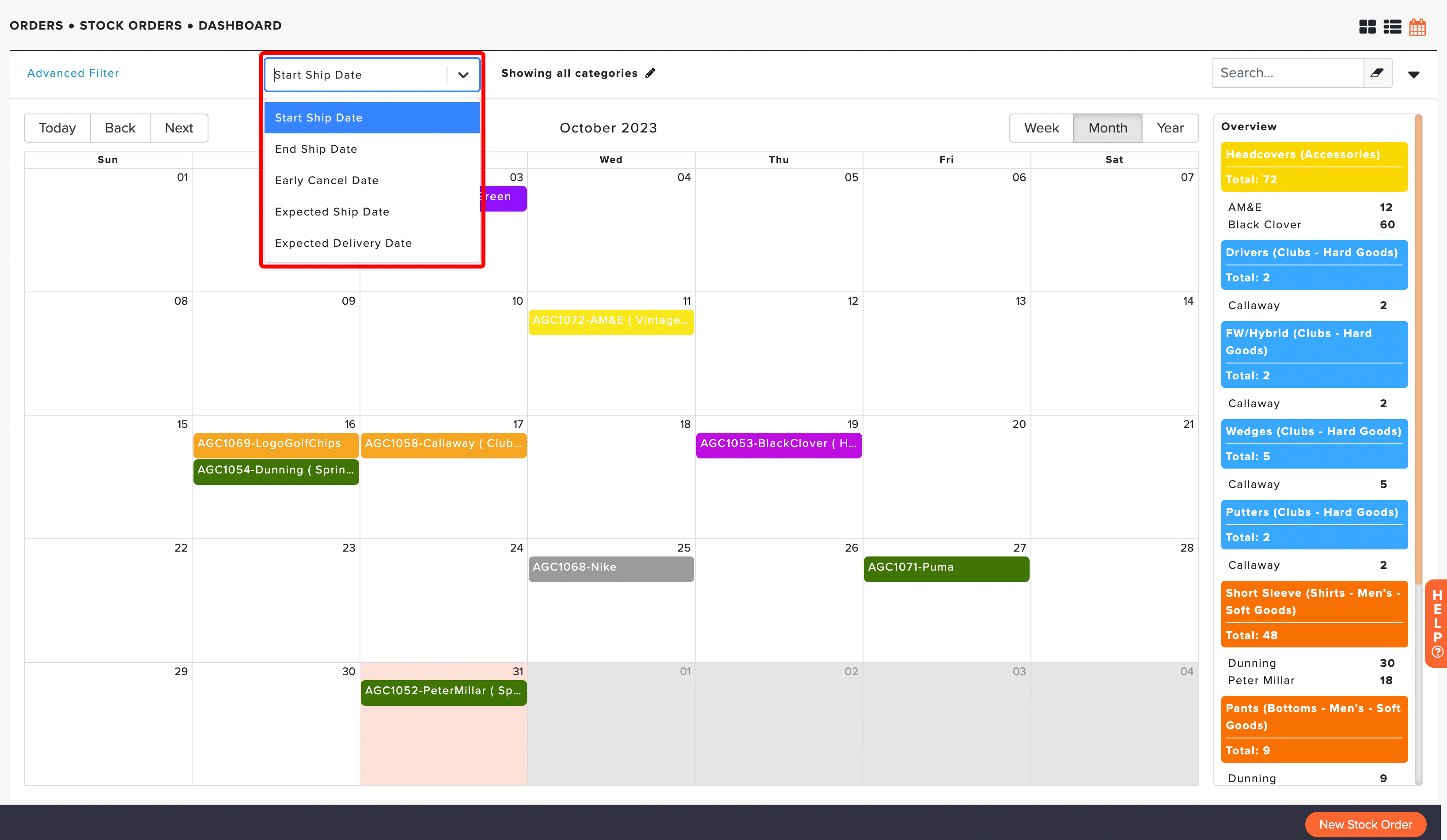
You can change the Dashboard view options on the top right for a calendar view of stock orders (as shown below).

Calendar View displays the orders by a specific date. You can also change the display date by clicking the drop-down (as shown below).

Notes:
Are you looking only to display a specific category of Stock Orders? Use the Stock Order Filter to narrow your results by specific merchandise categories.
In Month and Week view, the overview on the right-hand side shows totals for each category and a Grand Total. If the calendar is filtered by vendor, the Grand Total reflects only the categories shown.
To set a default calendar format and date filter so the calendar always opens to your preferred view, Click Here.