
When using Golf Shop, it is important that you maintain an accurate and up-to-date member roster, and there may be cases where you need to add new members to your member roster.
In this article, we will discuss how to add new members to your existing member roster.
Adding New Members:
Note: If you use an integration to import your member roster (i.e., Golf Genius Tournament Management, Clubessential, or LightSpeed without Push enabled), it is very important to make all member roster changes in the source roster. Changes in the source roster will then be reflected in the next sync. The only time changes in a source roster will not be reflected on the Golf Shop roster is when custom fields are locked from being overwritten. For more details on locking custom fields, Click Here. If you use the LightSpeed integration with Push enabled, this does not apply to you — see below for more details.
Over time, your membership changes, and you may need to add new members.
If you are not using an integration to import your member roster, we highly suggest uploading your initial member roster via spreadsheet. Please contact the support team to assist you in this process.
After uploading your initial member roster, you can then add additional members manually (if necessary) by following the instructions below:
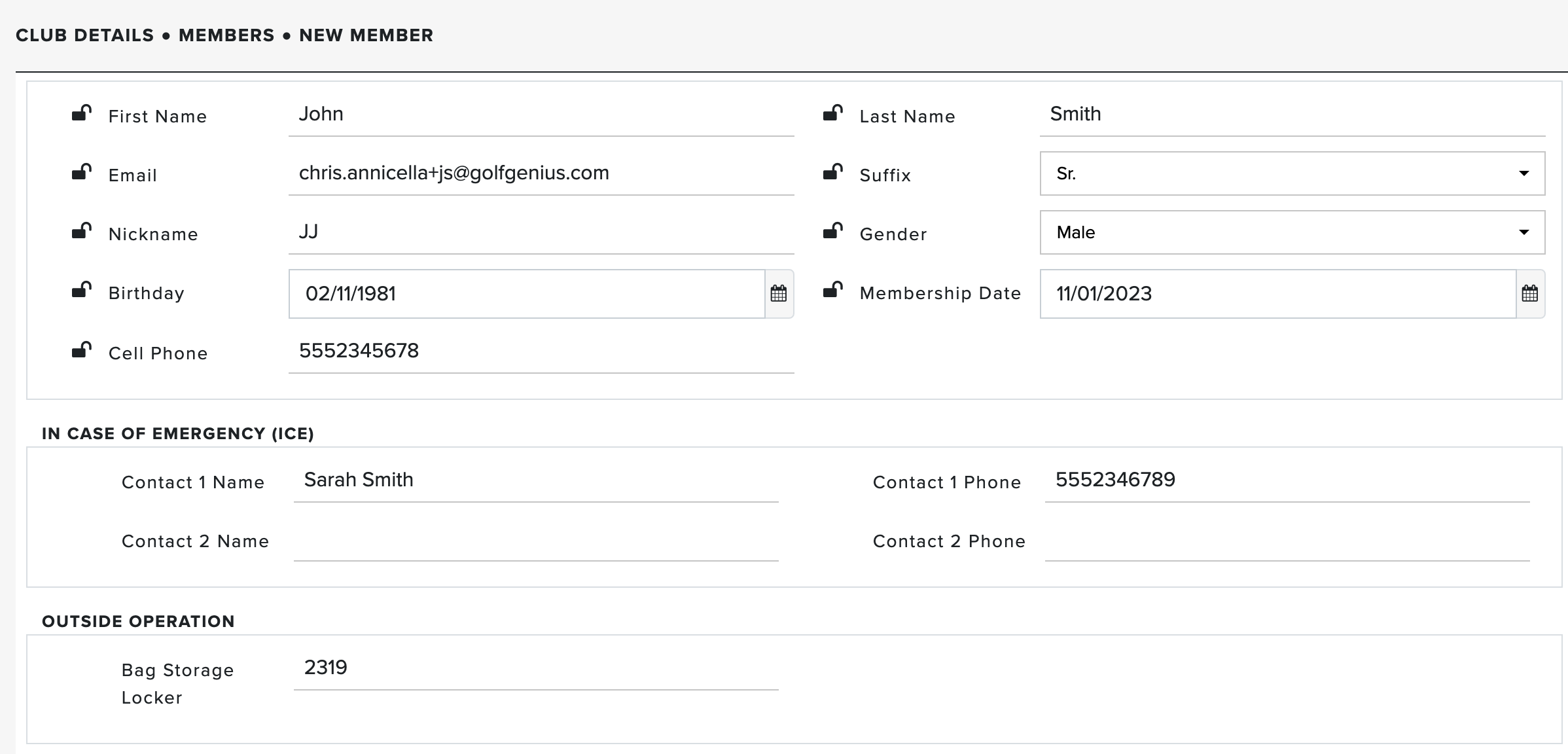
Navigate to Club Details > Members > Roster > New Member.
Enter the member information (as shown below).

Click "Save"
Repeat steps 1 thru 3 for any remaining members you'd like to add individually.
Adding New Members and Pushing to LightSpeed
If you use the LightSpeed integration with Push enabled, you can add new members directly through Golf Genius - Golf Shop and they'll be created in LightSpeed automatically. To add a new member and push them to LightSpeed, follow these directions:
Navigate to Club Details > Members > Roster > New Member.
Enter the member information.
Click "Create and Push to LightSpeed" (as shown below).
If a LightSpeed customer with that member's email doesn't already exist, or exists but isn't linked to another Golf Shop Member, the push completes automatically. If that email is already linked to a different Member, the "Push Member to LightSpeed" window appears (as shown below). Click "Continue push" to create a new LightSpeed customer sharing that email, or "Cancel" to stop the push.
Note: Once a member is pushed successfully, the Golf Shop Member and the LightSpeed customer stay linked, and future updates from either system sync automatically.
Member Best Practices:
When adding members, remember that:
Some fields are optional. For instance, you do not need to enter a nickname.
If you'd like the member to receive email and text notifications, they must have their email and cell phone in the roster.
Only add members to your roster. If a guest is placing a special order or using a demo/rental, you can add them as guests when creating an order.
When formatting the mobile phone number for players, many different number formats can be used. They may include a dash or parentheses. International (Non-US and Canadian) phone numbers will need the country code prefix before the phone number using the plus symbol.
Examples of Accepted US and Canada Phone Number Formats:555-555-5555
(555)555-5555
5553338888
Examples of Accepted International Phone Number Formats:
+44-555-555-5555
+445553338888
When entering a phone number, do not use symbols other than those listed above.